Get BettaReminders
Say it, it's saved. A hands-free reminder app.
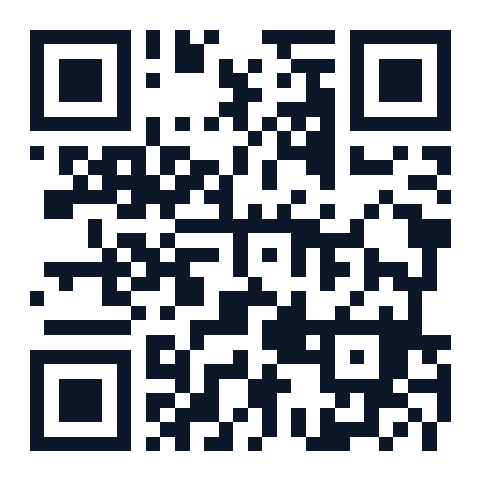
Scan with your phone's camera
or, if you're already on your phone
Download BettaReminders
Already have the app? Update it — 30 seconds
- Tap the Download BettaReminders button above.
- When it's finished, open the file and tap Update (it might say Install). Don't uninstall the old one first — your reminders stay exactly as they are.
- Tap Open. That's it. If your phone shows a warning, do what Step 2 below says.
What’s new (version 1.3): Recording a reminder is more reliable. There is now a big Stop button (you can still say stop), you can watch your words appear on the screen as you speak, and your recording is no longer lost if you switch to another app while speaking. Times you say like “10 a.m.” or “3 p.m.” are now saved as the right time of day (before, some could end up 12 hours out, so it’s worth a quick look at any reminders you set by voice with a time in the morning or afternoon). Your reminders and settings stay exactly as they are.
First time installing? Start here
Follow Steps 1 to 3 below.
Step 1 — Download it
- Tap the Download BettaReminders button above (or scan the QR code with your camera and open the link it shows).
- Your phone will save a file. You'll usually see it appear at the bottom of the screen, or in a "Downloads" notification — tap it to open.
Step 2 — Your phone will warn you first. This is normal.
- Because this app isn't from the Play Store, your phone will show a warning like "For your security, your phone is not allowed to install unknown apps from this source."
- Tap Settings on that warning, then turn on Allow from this source.
- Go back (the back arrow) and open the downloaded file again.
- You may see one more screen saying something like "Play Protect doesn't recognize this app" — this happens with any app not from the Play Store. Tap Install anyway.
This app is safe — it's built and sent to you directly, not something random from the internet. These warnings appear for every app installed this way, not just this one.
Step 3 — Install and open
- Tap Install. It takes a few seconds.
- Tap Open once it's done — or find BettaReminders on your home screen / app drawer.
- The app will ask permission to use your microphone (so it can hear your reminders) and to send notifications (so it can alert you). Tap Allow for both.